Map Builder
The Map Builder is where you design your city layouts. Place buildings on a grid, draw roads, and configure building properties.
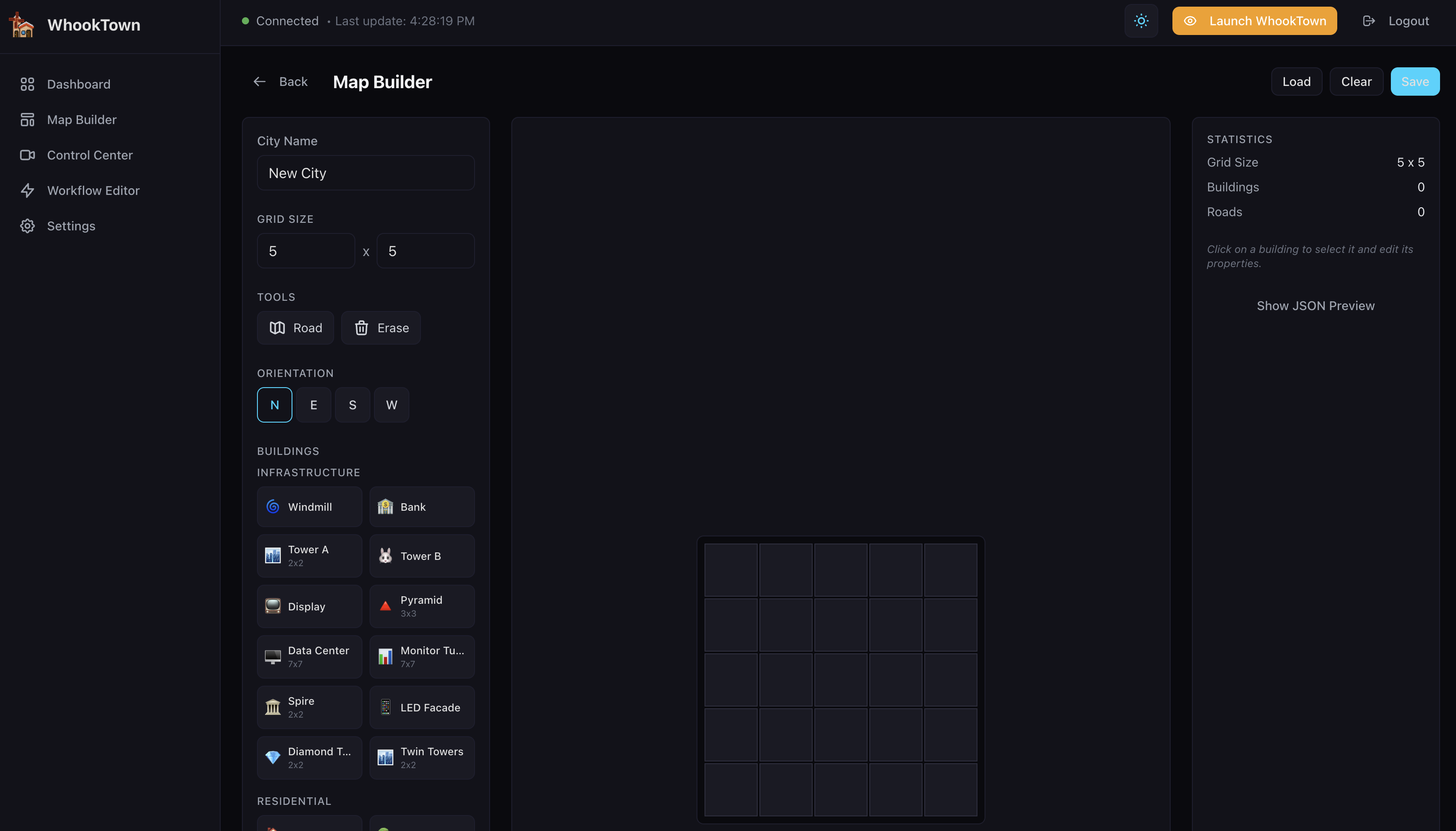
Layout Structure
The Map Builder has three main panels:
- Left Panel - Tools and building palette
- Center - Grid canvas
- Right Panel - Statistics and properties
Left Panel
City Name
Enter a descriptive name for your layout. This appears in the dashboard and scene.
Grid Size
Set the dimensions of your city grid:
- Width: 3 to 20 cells
- Height: 3 to 20 cells
Changing grid size
Reducing grid size may remove buildings that fall outside the new boundaries.
Tools
| Tool | Icon | Description |
|---|---|---|
| Road | Grid icon | Draw roads on the grid |
| Erase | Trash icon | Remove buildings or roads |
Orientation
Select the direction a building will face when placed:
- N (North) - Building faces up
- E (East) - Building faces right
- S (South) - Building faces down
- W (West) - Building faces left
Building Palette
Buildings are organized by category:
Infrastructure
| Building | Size | Description |
|---|---|---|
| Windmill | 1x1 | Energy turbine with rotating blades |
| Bank | 1x1 | Financial building with gold display |
| Tower A | 2x2 | Communication tower with LED text |
| Tower B | 1x1 | Alternative tower design |
| Display | 2x2 | LED ring display with custom text |
| Pyramid | 3x3 | Stepped pyramid with beam effects |
| Data Center | 7x7 | Large server facility with metrics |
| Monitor Tube | 7x7 | Holographic monitoring cylinder |
| Spire | 2x2 | Tall ovoidal tower |
| LED Facade | 1x1 | Building with animated LED displays |
| Diamond Tower | 2x2 | Crystalline faceted structure |
| Twin Towers | 2x2 | Connected towers with electric arcs |
Residential
| Building | Size | Description |
|---|---|---|
| House A | 1x1 | Compact habitation pod |
| House B | 2x2 | Medium skyscraper (8-12 floors) |
| House C | 2x2 | Tall cyberpunk tower (12-16 floors) |
Commercial
| Building | Size | Description |
|---|---|---|
| Bakery | 1x1 | Warm aesthetic building |
Farm
| Building | Size | Description |
|---|---|---|
| Farm Building A | 1x1 | Agricultural structure |
| Farm Building B | 1x1 | Alternative farm building |
| Farm Silo | 1x1 | Cylindrical storage |
| Farm Field A | 2x2 | Crop field |
| Farm Field B | 2x2 | Alternative field |
| Cattle | 2x2 | Livestock area |
Utilities
| Building | Size | Description |
|---|---|---|
| Traffic Light | 1x1 | Status indicator light |
| Tree | 1x1 | Holographic tree |
Center Canvas
Placing Buildings
- Select a building from the palette
- Set the orientation (N/E/S/W)
- Click on an empty cell in the grid
Multi-cell buildings
Large buildings (like Data Center 7x7) require enough adjacent empty cells. The placement will fail if there's not enough space.
Drawing Roads
- Select the Road tool
- Click on cells to toggle roads on/off
Selecting Buildings
Click on a placed building to select it. The building will be highlighted and its properties appear in the right panel.
Moving Buildings
Drag a selected building to move it to a new location.
Right Panel
Statistics (No Selection)
When no building is selected, the right panel shows:
- Grid Size - Current dimensions
- Buildings - Total count of placed buildings
- Roads - Total count of road cells
Building Properties (Selected)
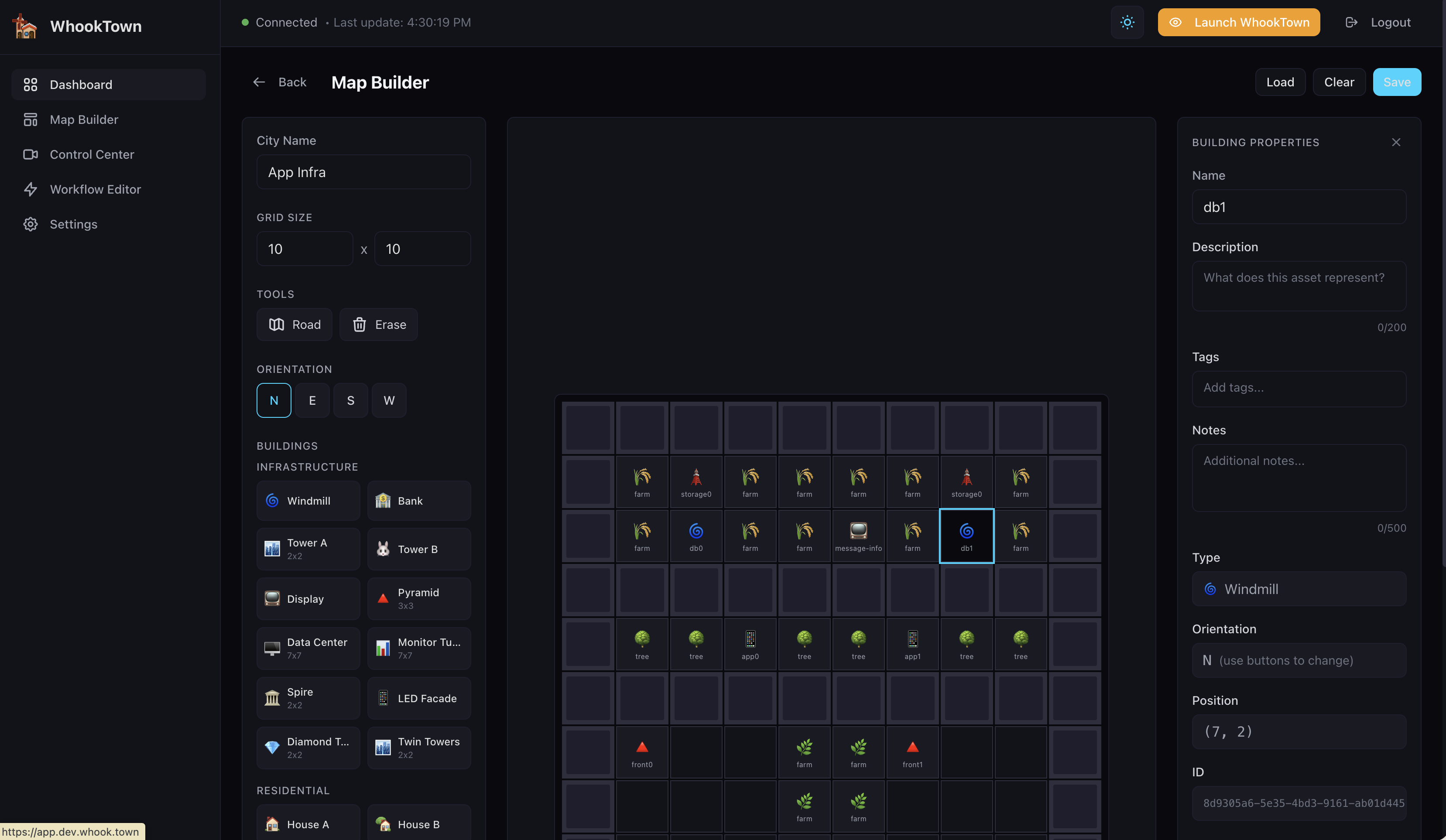
When a building is selected:
| Field | Description |
|---|---|
| Name | Display name for the building |
| Description | What this building represents |
| Tags | Comma-separated keywords for filtering |
| Notes | Extended notes or documentation |
JSON Preview
Click Show JSON Preview to see the raw layout data. Useful for debugging or manual editing.
Header Controls
Back
Return to the dashboard without saving.
Load
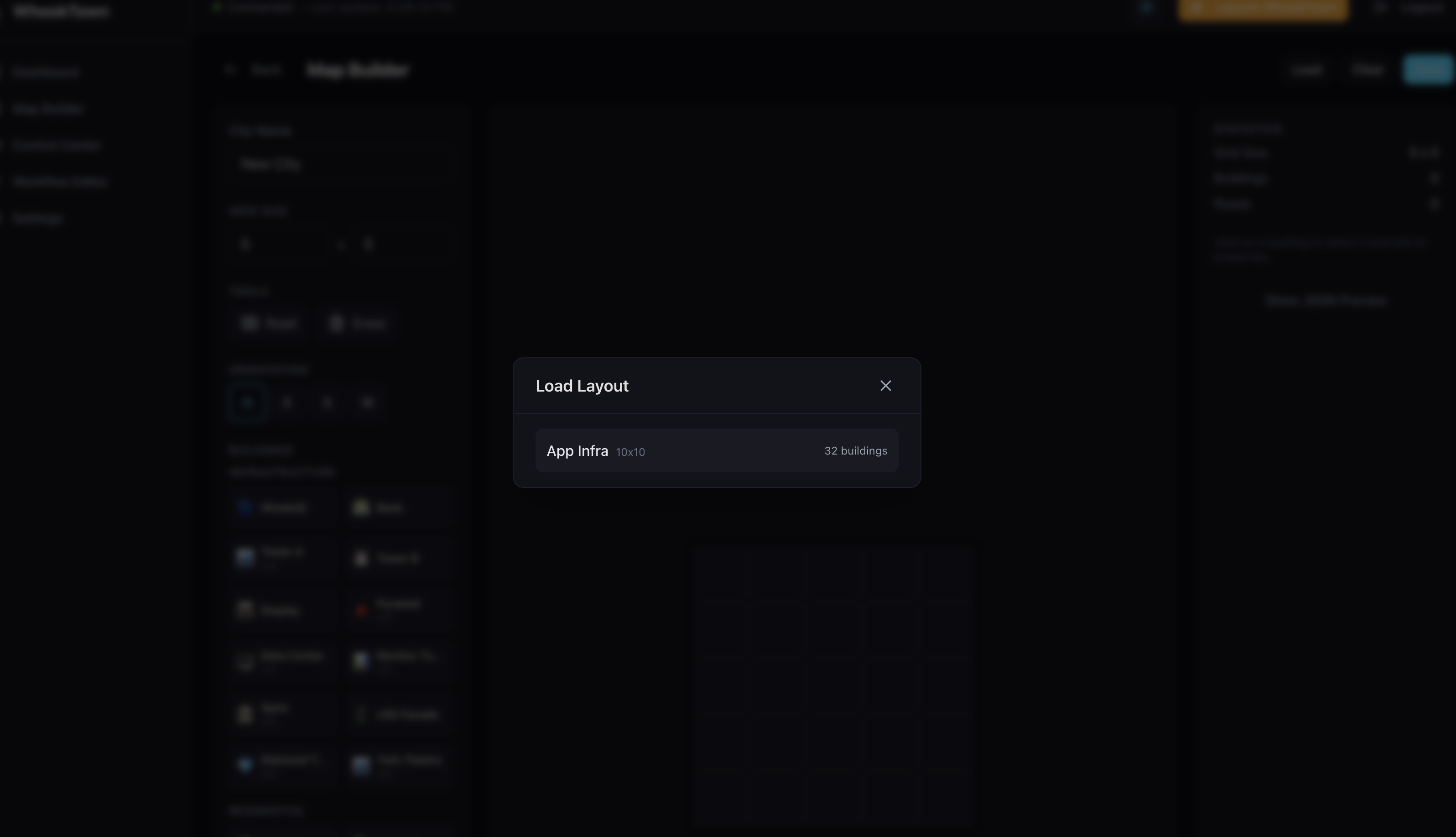
Open a previously saved layout:
- Click Load
- Select a layout from the list
- The layout loads into the editor
Unsaved changes
Loading a layout replaces the current grid. Save first if you have unsaved work.
Clear
Remove all buildings and roads from the grid. The grid size and city name are preserved.
Save
Save the current layout to the server. If this is a new layout, it will be created. If editing an existing layout, it will be updated.
Best Practices
Layout Design
- Start with roads - Draw the road network first, then place buildings along it
- Group related buildings - Place similar services near each other
- Leave space - Don't overcrowd; leave room for future expansion
- Use orientation - Face buildings toward roads for better traffic visibility
Naming Conventions
- Use descriptive names: "Production API Server" not "Server 1"
- Add tags for filtering: "production", "database", "critical"
- Include notes about the real infrastructure this represents
Building Selection
- Windmill - Great for application servers (blade speed shows activity)
- Data Center - Perfect for databases (shows CPU, RAM, etc.)
- Tower - Good for API gateways (LED text can show status)
- Pyramid - Ideal for core/critical services (dramatic visual presence)