Dashboard
The Dashboard is your home page in WhookTown, providing an overview of your city layouts and quick access to all features.
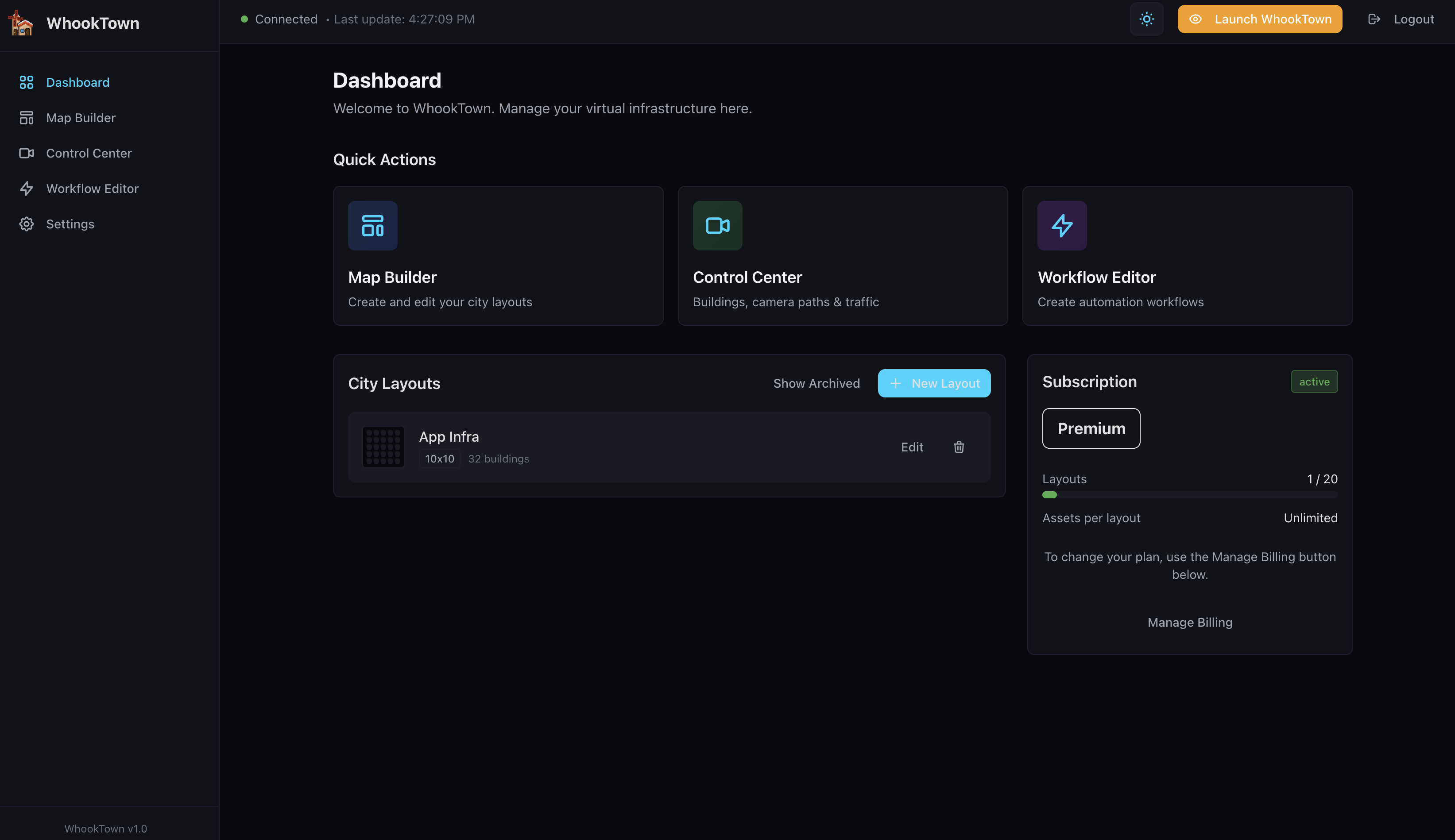
Quick Actions
The Quick Actions section provides one-click access to the main features:
| Card | Description |
|---|---|
| Map Builder | Create and edit your city layouts |
| Control Center | Manage buildings, camera paths, and traffic |
| Workflow Editor | Create automation workflows |
Click any card to navigate to that section.
City Layouts
This section displays all your saved city layouts.
Layout Cards
Each layout shows:
- Grid preview - Visual thumbnail of the layout
- Layout name - The name you gave the city
- Dimensions - Grid size (e.g., "10x10")
- Building count - Number of buildings placed
- Edit button - Opens the layout in Map Builder
- Archive button - Moves layout to archive (frees quota)
Creating a New Layout
Click the + New Layout button to open the Map Builder with a fresh grid.
Archived Layouts
Click Show Archived to view archived layouts. Archived layouts:
- Don't count against your quota
- Can be restored at any time
- Retain all buildings and settings
Subscription Card
The Subscription card shows your current plan status:
Plan Information
- Plan name - Free, Starter, or Premium
- Status badge - "active" when subscription is current
- Price - Monthly cost (e.g., "16 USD/month")
Quota Usage
- Layouts - Used layouts vs. maximum allowed (e.g., "1 / 20")
- Assets per layout - Maximum buildings per layout ("Unlimited" for Premium)
Managing Your Subscription
- Free users: Click Upgrade buttons to subscribe to Starter or Premium
- Paid users: Click Manage Billing to access the Stripe customer portal
In the Stripe portal, you can:
- Update payment method
- View invoices
- Change or cancel subscription
- Update billing information
Launch WhookTown Button
The Launch WhookTown button in the header opens the 3D scene at scene.whook.town.
The scene will:
- Prompt you to log in (uses the same account)
- Show the "Click to Enter" screen
- Load your active layout in 3D
Connection Status
The header shows your connection status:
- Green dot + "Connected" - WebSocket connection active
- Red dot + "Disconnected" - Connection lost, attempting to reconnect
- Last update - Timestamp of the most recent data sync
Version Information
The sidebar footer shows the current WhookTown version (e.g., "WhookTown v1.0").