Buildings Tab
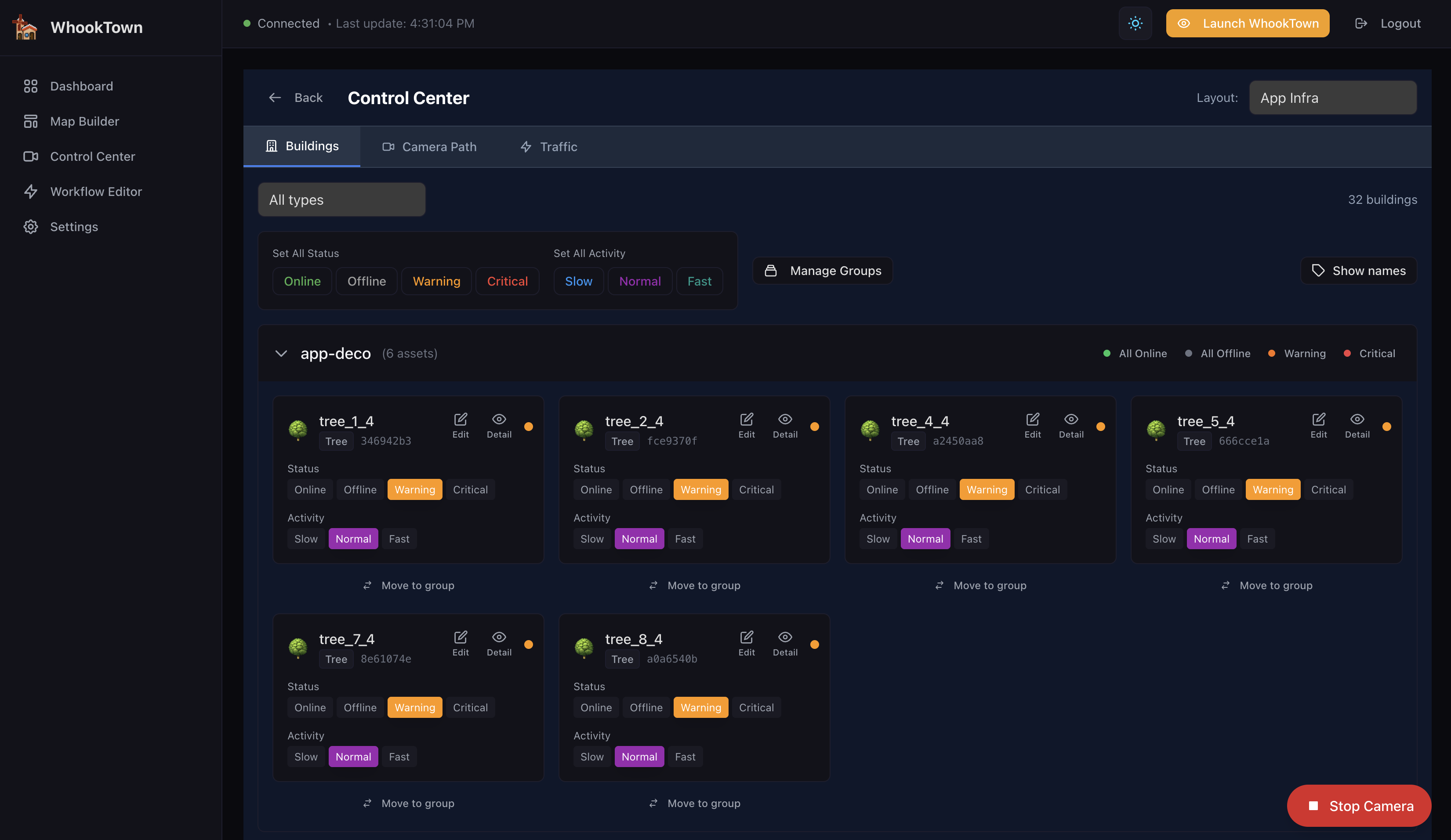
The Buildings tab lets you monitor and control individual buildings in real-time. Change status, adjust activity levels, and organize buildings into groups.
Overview
The Buildings tab displays all buildings from your selected layout as interactive cards. You can:
- Change building status (Online, Offline, Warning, Critical)
- Adjust activity level (Slow, Normal, Fast)
- Organize buildings into groups
- Show/hide building labels in the 3D scene
- Configure building-specific properties
Filtering
By Building Type
Use the type filter dropdown (shows "All types" by default) to filter buildings by their type:
- All types
- Windmill
- Data Center
- Arcade
- Bank
- Tower A / Tower B
- Pyramid
- House A / B / C
- And more...
Building Count
The total number of buildings is shown: "32 buildings"
Bulk Actions
The bulk actions bar lets you change all buildings at once:
Set All Status
Click one of the colored buttons to set all buildings to that status:
| Button | Status | Color |
|---|---|---|
| Online | Operational | Green |
| Offline | Stopped | Grey |
| Warning | Degraded | Orange |
| Critical | Error state | Red |
Set All Activity
Click one of the activity buttons:
| Button | Activity | Speed |
|---|---|---|
| Slow | Low activity | 0.5x animation |
| Normal | Standard | 1.0x animation |
| Fast | High activity | 2.0x animation |
Building Groups
Creating Groups
- Click Manage Groups
- Enter a group name
- Click Create
Adding Buildings to Groups
Each building card has a Move to group link. Click it and select a group.
Group Display
Groups appear as collapsible sections:
- Group name with asset count (e.g., "app-deco (6 assets)")
- Quick status buttons: All Online / All Offline / Warning / Critical
- Expand/collapse to show/hide buildings in the group
Show Names Toggle
The Show names toggle controls building label visibility in the 3D scene:
- Enabled: Building names float above each structure
- Disabled: No labels shown
This setting is applied to all connected 3D scenes immediately.
Building Cards
Each building is displayed as a card with:
Header
- Building name - The name you assigned
- Type badge - Building type (Tree, Windmill, etc.)
- ID preview - First 8 characters of the building UUID
- Status dot - Colored indicator (green/orange/red/grey)
Status Controls
Four buttons to set the building status:
| Status | Description | 3D Effect |
|---|---|---|
| Online | Service operational | Green glow, active animations |
| Offline | Service stopped | Grey/desaturated |
| Warning | Service degraded | Orange pulsing |
| Critical | Service in error | Red pulsing, fire effects |
Activity Controls
Three buttons with emoji indicators:
| Activity | Emoji | Description |
|---|---|---|
| Slow | 🐢 | Reduced animation speed |
| Normal | 🚗 | Standard animation speed |
| Fast | 🏎️ | Increased animation speed |
Action Buttons
- Edit - Opens the building editor modal
- Detail - Shows detail popup in 3D scene
Detail Popups
The Detail button opens an interactive popup in the 3D scene.
Behavior
- Shows comprehensive information: name, type, description, tags, notes, status
- Popup appears next to the building in the 3D scene
- Camera smoothly focuses on the building when popup opens
- Maximum 4 detail popups can be open simultaneously
Managing Popups
- Click Detail to show a popup for that building
- Click Detail again to close it
- Opening a 5th popup automatically closes the oldest one
- Use Close All in the toolbar to dismiss all popups at once
Popup Content
Each detail popup displays:
| Field | Description |
|---|---|
| Name | Building name |
| Type | Building type (e.g., Windmill, Data Center) |
| Status | Current status with color indicator |
| Description | Your description text |
| Tags | Assigned tags |
| Notes | Any notes added |
Visual Connection
A glowing neon line connects each popup to its building, making it easy to identify which building the information belongs to.
Building-Specific Properties
Some buildings have additional configurable properties:
Bank
- Quantity: none / low / medium / full (gold bar display)
Data Center
- CPU Usage: 0-100%
- RAM Usage: 0-100%
- Network Traffic: 0-100%
- Active Connections: Integer count
- Temperature: 0-100%
- Alert Level: normal / warning / critical
Display A
- Ring Count: 1-8 LED rings
- Text 1/2/3: Custom text for each ring
Tower A / Tower B
- Tower Text: LED display text
Arcade
- Sign Text: Neon sign text
- Dancer Enabled: Toggle holographic dancer
- Equalizer Enabled: Toggle equalizer visualization
Supervisor
- Face Rotation Enabled: Toggle face animation
Monitor Tube
- Band Count: 3-7 metric bands
- Band Values: Individual band percentages
Edit Modal
Clicking Edit opens a modal where you can modify:
- Building name
- Description
- Tags
- Notes
Changes are saved when you close the modal.
Real-Time Updates
All changes are immediately broadcast to:
- Connected 3D scenes (buildings update visually)
- Other users viewing the same layout
- Workflow engine (may trigger automated actions)