Navigation
The 3D scene supports three camera modes, each optimized for different use cases.
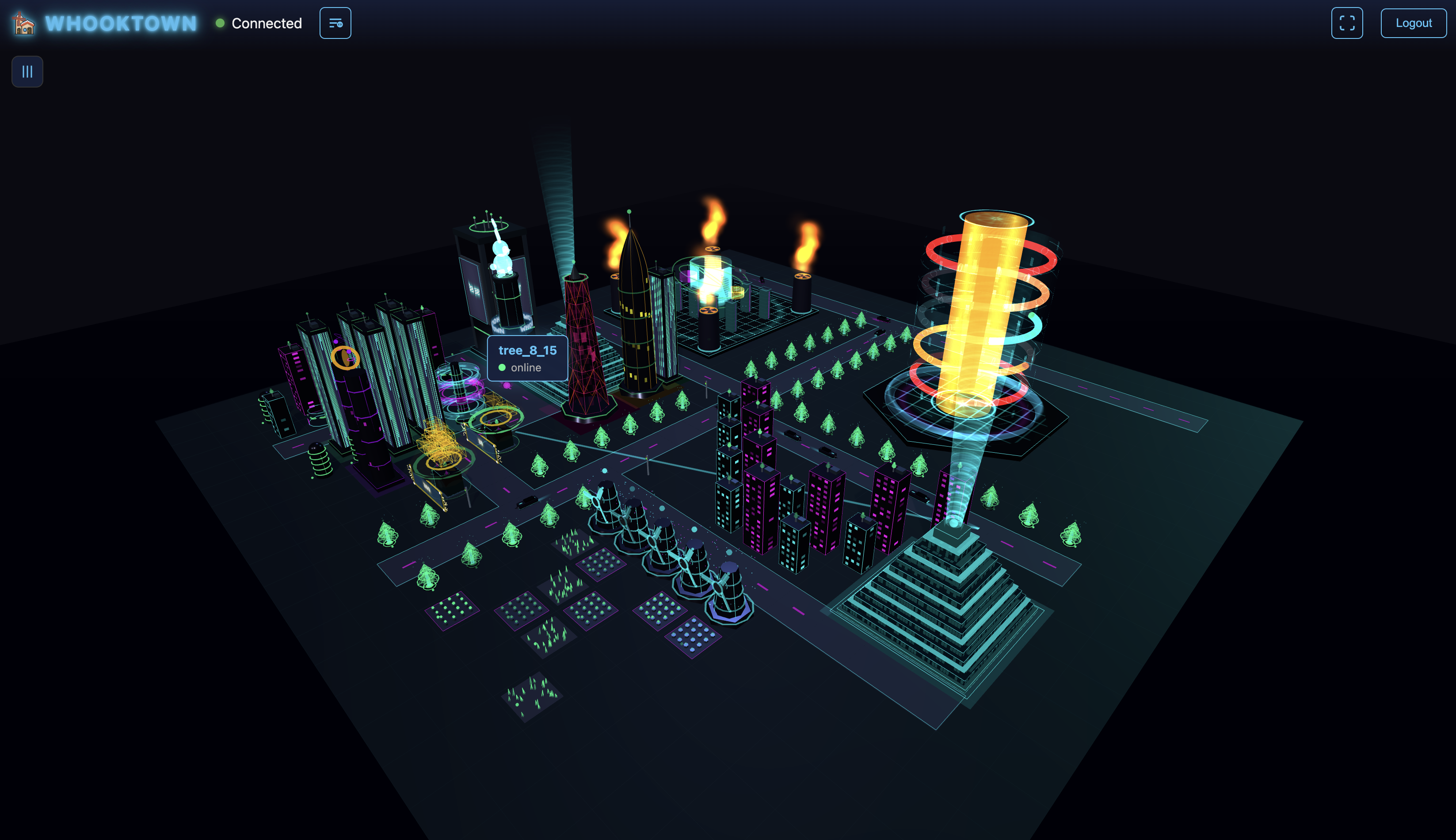
Camera Modes
| Mode | Best For | Controls |
|---|---|---|
| Orbit | Overview, general viewing | Mouse drag, scroll |
| FPS | Ground-level exploration | Keyboard + mouse |
| Flyover | Automated tours, presentations | Automatic path following |
Orbit Mode (Default)
Orbit mode keeps the camera pointed at the city center while you rotate around it.
Mouse Controls
| Action | Control |
|---|---|
| Rotate | Left-click + drag |
| Pan | Right-click + drag (or middle-click + drag) |
| Zoom | Mouse wheel scroll |
Touch Controls
| Action | Control |
|---|---|
| Rotate | Single-finger drag |
| Zoom | Pinch in/out |
Characteristics
- Camera always faces the city center
- Smooth inertial damping (momentum continues briefly after releasing)
- Distance clamped: 5-50 units from center
- Cannot flip the camera upside down
FPS Mode (First-Person)
FPS mode lets you walk through the city at ground level, like a first-person video game.
Activating FPS Mode
- Switch to FPS mode in Control Center
- Or receive a camera command setting mode to "fps"
- Click in the scene to enable pointer lock
Keyboard Controls
| Key | Action |
|---|---|
| W or ↑ | Move forward |
| S or ↓ | Move backward |
| A or ← | Strafe left |
| D or → | Strafe right |
| Space | Move up |
| Ctrl | Move down |
| Shift | Sprint (4× speed) |
| Escape | Exit pointer lock |
Mouse Controls
| Action | Control |
|---|---|
| Look around | Move mouse (in pointer lock) |
| Activate | Click to enable pointer lock |
Movement Speeds
| Mode | Speed |
|---|---|
| Walking | 0.3 units/second |
| Sprinting | 1.2 units/second (4× walking) |
Height Limits
- Minimum: 0.5 units above ground
- Maximum: 20 units high
- Default eye level: 1.7 units
Exiting FPS Mode
Press Escape to exit pointer lock. You can then: - Click again to re-enable - Switch to another mode
Flyover Mode
Flyover mode automatically follows a predefined path through the city.
Activating Flyover
- Create a camera path in Control Center
- Select the path
- Click Flyover button
- Camera begins following the path
During Flyover
| Action | Control |
|---|---|
| Free-look | Click to enable (look around while flying) |
| Exit free-look | Escape key (view auto-resets) |
| Stop flyover | Click "Stop Camera" button |
Free-Look in Flyover
When enabled: - Move mouse left/right: Yaw (horizontal rotation) - Move mouse up/down: Pitch (vertical tilt, ±60°) - Camera continues following path while you look around - Press Escape to reset view to path direction
Path Characteristics
- Default speed: 2 units/second
- Adjustable: 0.5× to 10× normal speed
- Smooth Catmull-Rom curve interpolation
- Default pitch: -0.3 radians (slight downward tilt)
- Look-ahead: Camera points 2 units ahead on path
Switching Modes
From Control Center
- Go to Control Center > Camera Path
- Find your connected scene
- Use the mode dropdown to select Orbit/FPS/Flyover
Via Workflow
Create a workflow with SET CAMERA action to automatically switch modes based on conditions.
Via CLI
wt camera command --layout <id> --mode orbit
wt camera command --layout <id> --mode fps
wt camera command --layout <id> --mode flyover
Camera Presets
Save and restore camera positions:
Creating a Preset
- Position the camera where you want
- Go to Control Center > Scene Control
- Click "New Preset"
- Name it and save
Applying a Preset
- Find the preset in the list
- Click "Apply"
- Camera smoothly animates to that position (1.5s transition)
Preset Properties
- Position (X, Y, Z)
- Rotation (X, Y, Z)
- Field of View (30-120°)
- Mode (Orbit/FPS/Flyover)
Camera Sequences
Chain multiple presets into automated sequences:
Creating a Sequence
- Create multiple presets
- Create a new sequence
- Add presets as keyframes
- Set transition and hold times
- Optionally enable looping
Sequence Playback
- Smooth ease-out cubic transitions
- Configurable hold time at each keyframe
- Loop mode for continuous playback
- Play/Pause/Stop controls
Tips
Best viewing angles
For overview shots, use Orbit mode with a 45° angle and medium zoom.
Dramatic reveals
Use Flyover mode at low altitude through streets for cinematic effect.
Presentations
Create a sequence that highlights key buildings, with 3-5 second holds at each.
Performance
FPS mode at ground level may have better performance than high-altitude views showing all buildings.